
Downloading an APK file for earning games and Android Apps is usually easy. The confusing part starts when Android blocks the installation, shows an “App Not Installed” message, or asks for permission that you cannot find in Settings.
An APK file is the installation package used by Android applications. Apps downloaded from outside the Google Play Store can also be installed manually, but Android requires permission before allowing a browser or file manager to install them.
This guide explains how to install an APK file correctly, where to find the required settings, and what to do when installation fails.
What Is an APK File?
APK stands for Android Package Kit. It contains the files Android needs to install an application on a device.
When you install an app through the Google Play Store, the installation process happens automatically. When you download an APK from a website, you need to open the downloaded file and approve the installation yourself.
An APK file normally ends with the .apk extension. For example:
example-app.apk
Make sure the downloaded file has this extension. A file ending in .zip, .pdf, or another format is not a standard APK installer.
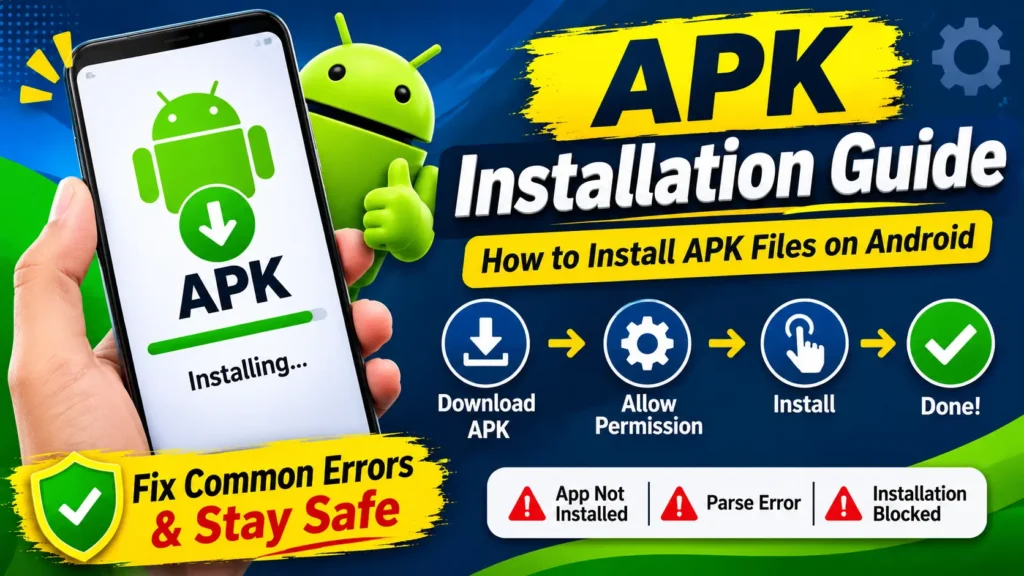
How to Install an APK File on Android
Follow these steps to install an APK manually.
Download the APK File
Open your browser, visit the website providing the APK, and download the installation file.
After the download finishes, open your phone’s Downloads folder. You can usually find it through the Files or My Files application.
Before opening the file, check its name and size. If the download stopped unexpectedly or the file size looks incomplete, download it again.
Allow Installation from This Source
Android blocks applications from installing APK files by default unless you allow the source responsible for opening them.
For example, if you downloaded the APK through Chrome, you may need to give Chrome permission to install apps.
On most recent Android phones:
- Open Settings.
- Go to Apps or Apps and notifications.
- Open Special app access, if available.
- Select Install unknown apps.
- Choose the application you used to download or open the APK, such as Chrome or Files.
- Enable Allow from this source.
The exact menu names can differ between Samsung, Xiaomi, Redmi, Infinix, Tecno and other Android devices.
Important: Give this permission only to the source you trust. You do not need to enable APK installation for every application on your phone.
Open the APK File
Return to your Downloads folder and tap the APK file.
Android will display an installation screen showing the app name and the permissions or information available during installation.
Tap Install and wait for the process to finish.
Once Android displays the App installed message, you can open the application directly or find its icon in your app drawer.
Turn Off Unnecessary Installation Permission
After installation, you can return to the Install unknown apps settings and disable permission for Chrome or your file manager.
This reduces the chance of accidentally installing another APK later.
How to Install APK on Samsung, Redmi and Infinix Phones
The general installation process is similar across Android devices, but the settings menu may have a different name.
Samsung Galaxy
On Samsung phones, open:
Settings > Security and privacy > More security settings > Install unknown apps.
Select Chrome or My Files, depending on where you opened the APK, and allow installation from that source.
Xiaomi and Redmi
On Xiaomi and Redmi devices, open Settings and look for the Install unknown apps option. You may find it under Privacy protection or Additional settings, depending on the MIUI or HyperOS version.
Choose the app responsible for opening the APK and allow the installation.
Infinix and Tecno
On Infinix and Tecno phones, open Settings and use the search bar to find Install unknown apps.
Select your browser or file manager and enable the required permission.
If the menu is difficult to locate, searching for the exact phrase in Settings is usually faster than checking every menu manually.
How to Install APK Files on Android 14, 15 and Newer Versions
Newer Android versions continue to use source-based installation permissions. This means you must authorize the browser or file manager that opens the APK.
The important point is that permission is linked to the source application. Allowing Chrome to install APK files does not automatically give the same permission to another file manager.
If Android displays a warning before installation, read it instead of dismissing it automatically. Google Play Protect may also scan applications installed from outside the Play Store.
Do not disable security protections just to install an unfamiliar application. If Android blocks a file, first confirm that it came from the official developer or a trustworthy source.
Common APK Installation Errors and Their Solutions
Not every APK installation problem is caused by missing permission. The following errors have different causes, so the solution depends on the message displayed on your screen.
App Not Installed
This message can appear when the APK is incompatible with your device, conflicts with an existing app, or contains a problem.
Try these steps:
- Check whether the APK supports your Android version.
- Make sure your phone has enough free storage.
- If an older version of the same app is installed, check whether the new version can update it.
- Download the file again if it may be damaged.
Do not uninstall an existing app before checking whether its data can be backed up. Removing an app may delete locally stored information.
There Was a Problem Parsing the Package
A Parse Error usually means Android cannot properly read or process the APK.
Possible reasons include:
- The APK download is incomplete.
- The file is damaged.
- The application requires a newer Android version.
- The package is not compatible with your device.
Download the file again from a reliable source and confirm that it supports your phone’s Android version.
Installation Blocked by Play Protect
Google Play Protect can scan apps installed outside the Play Store and display warnings about potentially harmful applications.
A warning does not automatically prove that an app is dangerous, but it should not be ignored either.
Check the developer, download source and app details. If the warning identifies a security risk, avoid installing the file unless you can independently verify that it is safe.
Do not turn off Play Protect simply to bypass a warning.
APK File Is Not Opening
If tapping the downloaded file does nothing, check whether the download has finished.
Open your file manager, locate the APK and tap it again. Also confirm that the file has an .apk extension.
If the phone opens the file as an archive or displays an unsupported format message, you may have downloaded a different package type rather than a standard APK.
Not Enough Storage Space
Android needs available storage to process and install an application.
Delete unnecessary downloads, remove unused apps or clear temporary files. Then try installing the APK again.
Keep some free space available instead of filling your phone’s storage completely.
What Are APK, XAPK and APKS Files?
Not every Android application is distributed as a single APK file.
| File Type | Description |
|---|---|
| APK | Standard Android application installation package |
| XAPK | A package format that may include an APK and additional app data |
| APKS | A set of split APK files packaged together |
A standard APK can usually be installed by tapping it in your file manager.
XAPK and APKS files may require a compatible installer because Android cannot always install them directly like a normal APK.
Before using a third-party installer, confirm that the package comes from a trusted source. Avoid downloading random installation tools just because a website tells you to use them.
How to Check an APK Before Installing It
An installation guide should not only explain which button to press. It should also help users avoid installing modified or harmful applications.
Use these checks before opening an APK:
- Check the source: Prefer the official developer website or a source clearly authorized by the developer.
- Check the app name: Make sure the downloaded file matches the application you intended to install.
- Check the Android requirement: An app designed for a newer Android release may not work on an older phone.
- Review permissions: A simple utility should not need access to unrelated personal information without a clear reason.
- Avoid modified files: Modded APKs can contain altered code, unwanted advertisements or harmful components.
- Scan suspicious files: You can use a reputable security tool to check a file, but no scan can guarantee that an APK is completely safe.
Never enter your banking password, OTP or other sensitive information into an application simply because it requests it during installation.
Can You Install APK Without the Google Play Store?
Yes. Android supports manual installation of APK files, so the Google Play Store is not required for every installation.
You still need a compatible Android device, a valid installation package and permission for the source application to install it.
However, installing an APK manually does not mean that every application will work. Some apps depend on Google Play services, device-specific features or additional components that may not be available on your phone.
Frequently Asked Questions
Is it safe to install APK files on Android?
It depends on the source and the application. APK files from unknown websites can contain harmful or modified code. Download from a trusted source and review the app before installing it.
Why does Android ask for permission to install unknown apps?
Android uses this permission to control which applications can install software from outside the Play Store. You need to authorize the browser or file manager that opens the APK.
Can I install an APK on an older Android phone?
Yes, provided the application supports your Android version and device architecture. An APK designed for a newer Android release may not install on an older phone.
Does installing an APK delete existing apps?
No. Installing a separate application normally does not remove other apps. However, installing an update or another package with the same app identity can replace an existing version.
Why does my phone say App Not Installed even after enabling permission?
Installation permission is only one requirement. The file may be incompatible, damaged, or conflicting with an existing version of the application.
Can I delete the APK after installation?
Yes. Once the application has installed successfully, you can delete the downloaded APK file to free up storage. Deleting the installer does not normally uninstall the application.
Do I need to keep Allow from This Source enabled?
No. You can disable the permission after installation. The installed application will normally continue working without it.
Final Thoughts
Installing an APK on Android is straightforward once you understand the source permission and the file type. Download the correct package, allow installation from the app you are using, open the file and follow the installation prompt.
If an error appears, do not repeatedly tap Install or disable your phone’s security features. Identify the actual problem first. A damaged download, incompatible Android version and existing app conflict all require different solutions.
After these precautions you can install APKs of all earning games like XP777 and 33 RS Game.