
Downloading an APK is easy. Getting Android to APK installation it can be a little confusing, especially when your phone shows a security warning or asks you to change an app permission first.
If you have an APK saved on your phone and don’t know what to do next, this guide walks you through the process from start to finish. It also covers the most common installation errors and a few checks you should make before opening an APK.
What Is an APK?
APK stands for Android Package Kit. It is the file format Android uses to install applications manually. Apps downloaded from Google Play are installed automatically through the Play Store. With an APK, you download the installation file yourself and then open it on your phone.
You may come across APK files when an app isn’t available through Google Play, when you’re installing a specific version, or when a developer provides the APK directly.
The file normally ends with .apk.
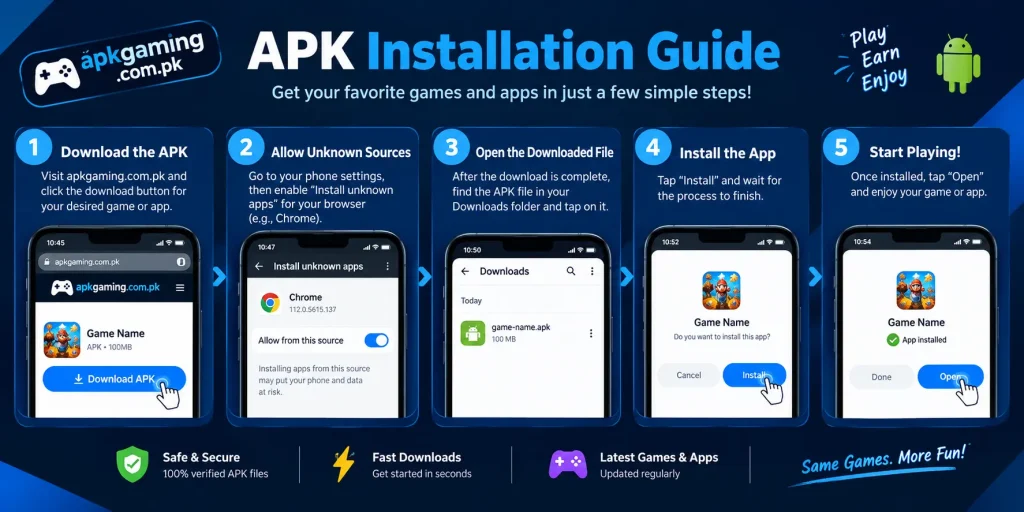
How to Install an APK on Android
The installation process is similar on most Android phones. The names of some settings can change depending on your phone manufacturer and Android version.
Step 1: Download the APK
Download the APK file to your Android phone. Before opening it, take a moment to check the basic information:
- App name
- APK version
- File size
- Minimum Android requirement
- Source of the file
- Whether it is an original or modified APK
Avoid downloading APK files from random links just because they promise premium features or unlocked content.
Step 2: Open the Downloads Folder
Once the download finishes, open your phone’s file manager. On most devices, the APK will be inside:
Files → Downloads
Samsung phones generally use the My Files app, while other manufacturers may use their own file manager.
You can also open your browser’s download list and tap the APK from there.
Step 3: Tap the APK
Tap the downloaded .apk file. Android may stop the installation and display a message saying that your phone isn’t currently allowed to install apps from this source.
This is a normal Android security restriction for apps installed outside the Play Store.
Step 4: Allow the Required Permission
If Android asks you to change the setting, look for Install unknown apps.
On many devices, you can find it under:
Settings → Apps → Special access → Install unknown apps
Select the app that opened the APK, such as Chrome or your file manager, and allow it to install unknown apps. The exact menu may be different on your phone. If you cannot find it, search for Install unknown apps in Settings.
Step 5: Install the APK
Go back to the downloaded APK and tap it again. You should now see the Android installation screen.
Tap Install and wait for the process to finish. Once Android says the app has been installed, you can tap Open.
Step 6: Check the App After Installation
Don’t immediately give an unfamiliar app every permission it requests.
Open it and make sure:
- The app name is correct
- The interface looks as expected
- There are no strange redirects
- It isn’t showing excessive pop-ups
- Its permissions make sense
If something looks suspicious, close the app and consider removing it.
How to Install an APK on Samsung
Samsung phones support APK installation just like other Android devices.
If the installation is blocked, open:
Settings → Apps → Special access → Install unknown apps
Choose the browser or file manager you used to open the APK. On different One UI versions, the menu can look slightly different. Using the Settings search bar and typing Install unknown apps is often the quickest way to find it.
After installing the APK, you can turn the permission off again if you don’t need it.
How to Install an APK on Redmi or Xiaomi
Redmi and Xiaomi phones also support manual APK installation. If your phone blocks the file, open Settings and search for:
Install unknown apps
or
Unknown apps
Select the application that opened the APK and allow the required installation permission.
The exact location can change between MIUI, HyperOS and different Android versions, so using Settings search is often easier than following an old menu path.
How to Install an APK on Infinix or Tecno
The process is similar on Infinix and Tecno phones. If Android doesn’t allow the installation, search your Settings for Install unknown apps.
Choose the browser or file manager you used to open the APK, enable the permission, and then return to the downloaded file.
Once the installation is complete, you can disable the permission again.
Installing APKs for Android Games
The same steps apply to gaming APKs. For example, APKGaming has individual guides covering games such as 666C Game APK, 988Win Game and 81CC Game APK.
If you’re downloading a particular game, check its individual guide for the listed Android requirements and APK information before installing it.
You can also browse APKGaming’s Latest Games section for other recently covered Android games.

What to Check Before Installing an APK
Not every APK should be treated the same way. Before installing one, check a few basic things.
Check the Source
Think about where the file came from. Be more cautious with APKs received through random messages, social media accounts, Telegram groups or unfamiliar websites.
A file having the correct app name doesn’t prove that it is an original package.
Check the Android Requirement
An APK may require a particular Android version. If your phone is running an older version than the app supports, Android may refuse to install it or the app may not work properly after installation.
Check the File
Look at the APK’s file name and size. If the downloaded file is dramatically different from the information provided by the source, investigate before installing it.
Be Careful With Modified APKs
You may see APKs described as:
- MOD APK
- Cracked APK
- Premium Unlocked
- Unlimited Coins
- Unlimited Money
Modified packages aren’t the same as the original application. Changes made to an APK can introduce additional security or privacy risks.
If you don’t specifically need a modified version, sticking with an original package is the safer approach.
How to Check APK Permissions
After installation, Android may ask for access to different parts of your phone.
Depending on the app, these can include:
- Camera
- Microphone
- Location
- Contacts
- Phone
- Files and media
The important thing isn’t simply how many permissions an app requests. Look at whether the requested access makes sense for what the app is supposed to do.
You can normally review permissions from:
Settings → Apps → Select the App → Permissions
The menu can vary slightly between Android versions.
How to Fix “App Not Installed” Error
One of the most common APK problems is the App Not Installed message. There isn’t one single cause, so check these possibilities.
1. Free Up Storage
If your phone is almost full, Android may not have enough space to complete the installation. Remove unnecessary files or apps and try again.
2. Check Android Compatibility
Make sure your Android version meets the application’s requirements. An incompatible APK may fail even when the file downloaded correctly.
3. Download the APK Again
A failed or interrupted download can leave you with a damaged APK. Delete the existing file and download it again from a source you trust.
4. Check for an Existing Version
If the same application is already installed, the new APK may conflict with it. This can happen when the existing app and the new APK don’t have compatible package signatures.
If you decide to uninstall the existing version, make sure you know how to access your account and important data again first.
5. Check the APK Architecture
Some applications are built for particular device architectures. If the APK isn’t compatible with your phone’s architecture, it may fail to install or work incorrectly.
APK Installs but Won’t Open
Sometimes an APK installs successfully but crashes as soon as you open it.
Try these basic fixes:
- Restart your phone.
- Check your internet connection.
- Make sure you have enough free storage.
- Clear the app’s cache.
- Close unnecessary background apps.
- Check the Android requirements.
- Reinstall the application if necessary.
If the problem started immediately after installing an APK from an unfamiliar source, removing the app may be the better option.
APK Keeps Crashing
Frequent crashes can be caused by several things.
Possible reasons include:
- Unsupported Android version
- Low available RAM
- Low storage
- Corrupted installation
- Outdated APK
- Network problems
- Device compatibility issues
If the application previously worked and suddenly stopped, check whether a newer compatible version is available.
APK File Will Not Open
If tapping an APK does nothing, check whether the download actually completed. Also make sure the file has the .apk extension.
If the browser reports a failed or incomplete download, remove the file and download it again. If your phone is low on storage, free some space before trying another download.
Is It Safe to Install an APK?
Installing an APK isn’t automatically dangerous, but the source and contents of the file matter.
Before installing, consider:
- Where did the APK come from?
- Is the version information clear?
- Does the file match the expected application?
- Is it an original or modified package?
- Does Android display a security warning?
- Are the requested permissions reasonable?
Don’t ignore a warning just to get an app installed.
If you cannot verify the source of an APK or something about the file looks suspicious, don’t install it.
APK Safety Tips for Android Users
A few simple habits can make manual APK installation safer.
Keep Android Updated
Install available Android security and system updates. An up-to-date phone generally has better protection against known security issues.
Don’t Share Sensitive Information
Never give your password, OTP, PIN or recovery code to someone claiming to be app support. This is especially important if the APK is connected to an account or payment service.
Don’t Trust APK Names Alone
Malicious files can use familiar names and icons. Check the source and other available file information instead of relying only on the filename.
Turn Off Unknown App Installation When Finished
If you enabled installation permission for Chrome or a file manager temporarily, you can disable it after installing the APK.
APKs That Use Payments
Some gaming and earning applications include deposit or withdrawal features. If you install an app with payment functionality, check the application’s information before sending money or entering wallet details.
APKGaming also maintains a Deposit and Withdrawal Guide covering common payment methods and transaction-related checks.
Never share your OTP, wallet PIN, password or security code with another person, even if they claim to be support.
APK Installation Checklist
Before installing an APK, quickly check:
- APK source
- File name
- File size
- Android requirement
- Available storage
- Version information
- Whether the package is modified
- Requested permissions
- Android security warnings
After installation:
- Open the app and check its behaviour
- Review permissions
- Keep your account details private
- Disable the installation permission if you no longer need it
- Remove the app if it behaves suspiciously
Frequently Asked Questions
How do I install an APK on Android?
Download the APK, open it from your Downloads folder, allow installation from the relevant source when Android asks for permission, and tap Install.
Why can’t I install an APK on my phone?
The most common reasons include blocked installation permission, insufficient storage, an incompatible Android version, a corrupted APK or a package conflict with an existing app.
Where can I find Install Unknown Apps?
On many Android phones, it is under Settings → Apps → Special access → Install unknown apps. The location can vary, so searching for the setting inside Android Settings is often easier.
Why does my APK say App Not Installed?
Check your available storage, Android version, APK integrity and whether another version of the same app is already installed.
Can I install an APK without Google Play?
Yes. Android allows manual APK installation when the appropriate installation permission is enabled.
Is an APK safe?
An APK is an Android installation package, but its safety depends on the source and what is contained in the package. Check the source, permissions and Android warnings before installing.
Can I install APK files on Samsung?
Yes. Samsung Android phones support APK installation. The exact location of the required permission depends on your One UI and Android version.
Can I install an APK on Redmi?
Yes. Redmi phones support manual APK installation. If Android blocks the file, search Settings for Install unknown apps.
What should I do if an APK installs but keeps crashing?
Restart the phone, check storage and internet access, clear the app cache, verify Android compatibility and reinstall the application if necessary.
Should I leave Install Unknown Apps enabled?
If you only enabled it to install one APK, you can disable the permission afterwards. You don’t need to keep it enabled for a source you no longer use.
Final Thoughts
Installing an APK on Android is fairly straightforward once you know where the installation permission is located. The bigger thing to pay attention to is the APK itself. Check its source, Android compatibility, file information and permissions before installing it.
If Android blocks the installation, look for Install unknown apps and allow the permission for the specific browser or file manager you are using. If you get an App Not Installed error, check storage, compatibility, the APK download and any existing version of the same application.
For gaming and earning apps, take an extra moment to check the application before entering account or payment information. A careful installation takes only a few extra minutes and can help you avoid problems later.